
Kubernetes Dashboard is archived: moving to KubeGlass
Kubernetes Dashboard, the web UI the Kubernetes project used to offer, was archived on 21 January 2026. Installs keep running, but the project takes no more changes, so they get no more fixes, security fixes included. This guide moves a cluster from Dashboard to KubeGlass: installing it where Dashboard ran, signing people in the way they did, doing the same tasks, and removing Dashboard.
What happened
Section titled “What happened”- On 5 January 2026 the maintainers announced on the SIG UI mailing list that the project would be archived, and added a notice to its README: “This project is now archived and no longer maintained due to lack of active maintainers and contributors.” The README goes on: “Please consider using Headlamp instead.”
- GitHub shows the repository as archived on 21 January 2026. It now lives at kubernetes-retired/dashboard.
- SIG UI’s annual report for 2025 says its leaders “decided to discontinue Kubernetes Dashboard” in late December 2025.
- The page on kubernetes.io opens with “Kubernetes Dashboard is deprecated and unmaintained” and, for new installations, suggests Headlamp.
- The last release is Helm chart 7.14.0, from 30 October 2025. The chart repository in the install instructions,
https://kubernetes.github.io/dashboard/, answers 404 for itsindex.yaml, sohelm repo addwith it fails.
What replaced it
Section titled “What replaced it”The Kubernetes project points Dashboard users to Headlamp, which SIG UI also maintains and which installs in a cluster the same way. KubeGlass is another open-source web UI that does. KubeGlass vs Kubernetes Dashboard compares the two feature by feature, and KubeGlass vs Headlamp says when Headlamp is the better choice.
Install KubeGlass in the cluster
Section titled “Install KubeGlass in the cluster”Like Dashboard, KubeGlass installs in a cluster with a Helm chart, and people use it in a browser. Where Dashboard runs a Kong gateway in front of separate API, auth, web and metrics containers, KubeGlass is one container. To try it the way Dashboard’s guide reaches its Kong proxy, with a port forward:
helm install kubeglass oci://ghcr.io/kubeglass/charts/kubeglass \  --namespace kubeglass --create-namespace \  --set config.authMode=token
kubectl -n kubeglass port-forward svc/kubeglass 8090:8090
Open localhost:8090. In token mode the sign-in page asks for a Kubernetes bearer token, as Dashboard’s login page did; see the next section. Before you give people an address of their own, with an Ingress and TLS, read Running for a team and the installation guide. values-production.yaml in the chart is a starting point.
If you were the only one using Dashboard, you may not need anything in the cluster. Run KubeGlass on your computer with your kubeconfig and it shows every cluster in it, which Dashboard, with one cluster per install, couldn’t:
brew install kubeglass/tap/kubeglasskubeglassSign in the way people did
Section titled “Sign in the way people did”| In Dashboard | In KubeGlass |
|---|---|
| A bearer token pasted on the login page | token mode: the sign-in page takes the same token, asks the API server whose it is, and sends every request with it, so the token’s RBAC applies |
An Authorization: Bearer header from a proxy in front |
oidc mode reads the same header, checks the token against your issuer and acts as that user. Or keep the proxy and use impersonation mode, which reads the user and groups it passes on |
| No sign-in button of its own | oidc mode sends people to your identity provider (Dex, Keycloak, Okta, Entra ID, Google) and back, with no proxy |
A token for someone to paste comes from their ServiceAccount, for example kubectl -n team-a create token viewer --duration 8h. If people used the admin-user token from Dashboard’s sample-user guide, give them tokens of their own: that ServiceAccount is bound to cluster-admin. In oidc and impersonation modes KubeGlass’s own ServiceAccount needs the right to impersonate people; the chart sets that up (see What KubeGlass’s ServiceAccount needs). Sign-in has the setup for each provider.
The same tasks side by side
Section titled “The same tasks side by side”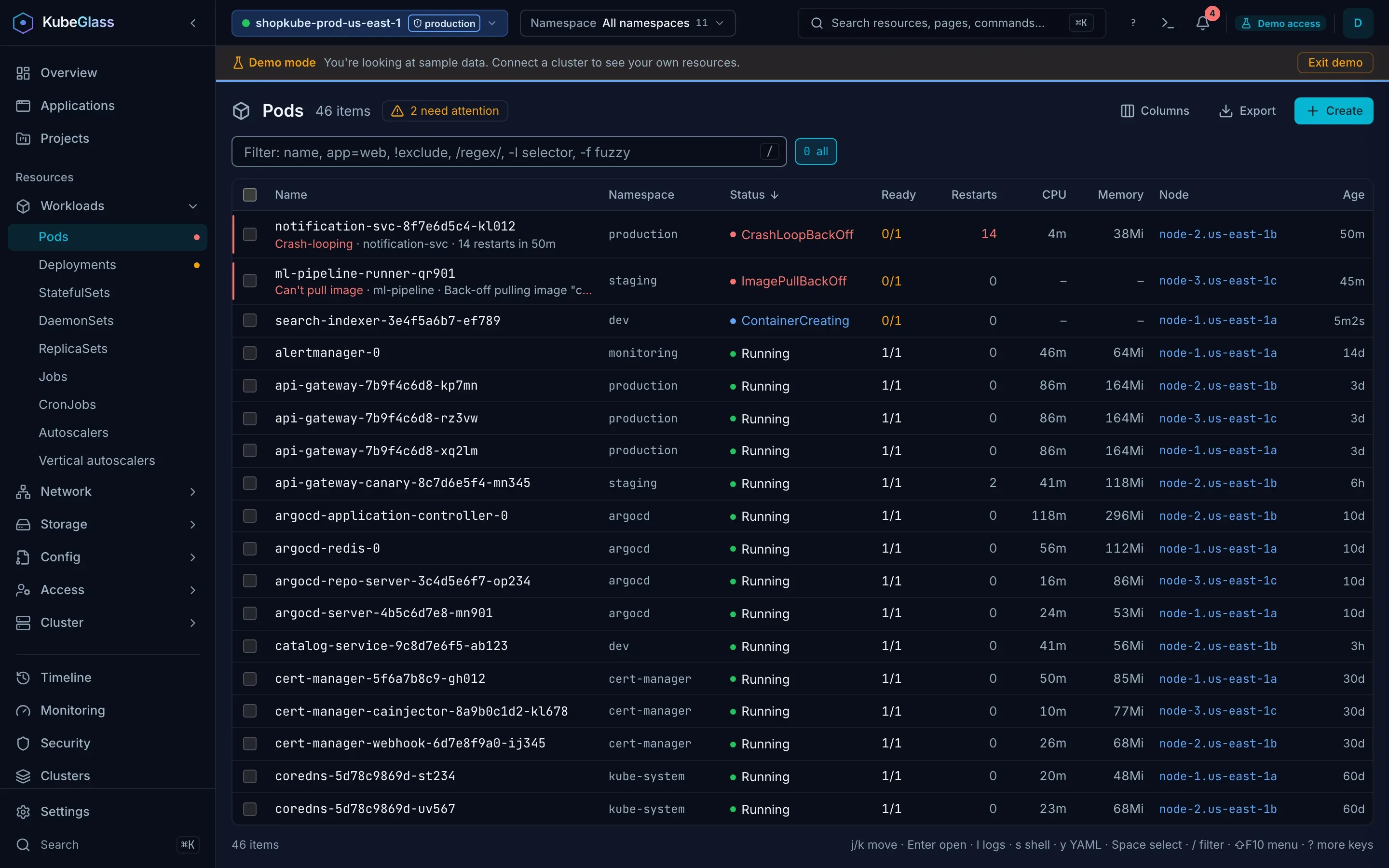
| To | In Kubernetes Dashboard | In KubeGlass |
|---|---|---|
| See what is failing | Each object’s state and errors on its list and page | The Overview lists every object with a problem, errors first and then the newest, with the reason in plain words and the change made just before it |
| Pick a namespace | The namespace selector, on default at first |
The namespace picker or n, on all namespaces at first |
| List workloads | Workloads, one list per kind | Resources › Workloads, one list per kind, with k9s keys |
| See nodes and their usage | Nodes, Namespaces and PersistentVolumes, with CPU and memory across nodes | Resources › Cluster › Nodes with CPU and memory columns; a node’s page has its allocation and a day of usage |
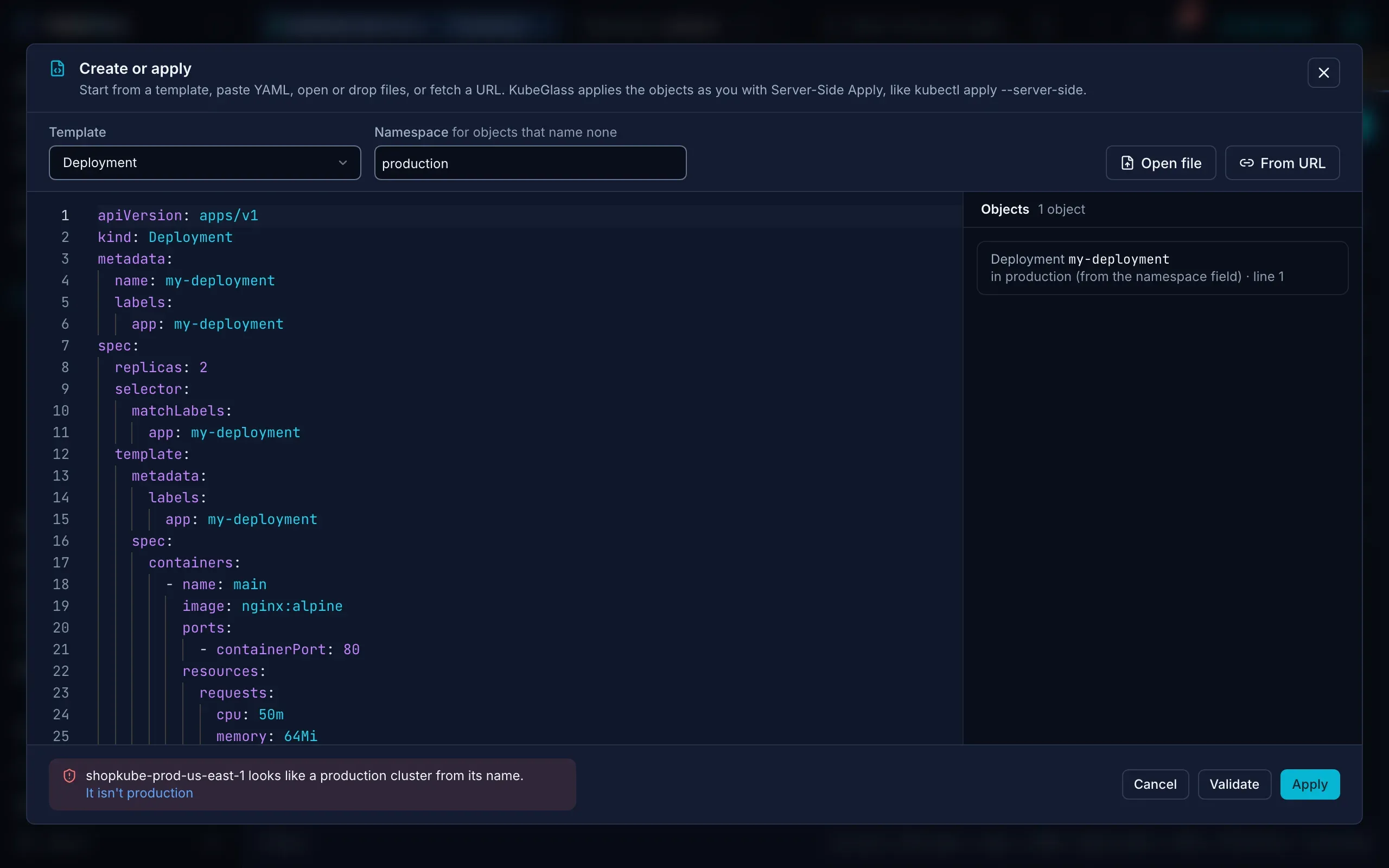
| Deploy an app | The deploy wizard (a form), or a YAML or JSON file | Create on any list: a template for the kind, or YAML you paste, open, drop or fetch from a URL, with a dry run before you apply |
| Scale, restart or roll out | Scale a Deployment, start a rolling update, restart a pod | Scale, Restart and Roll back on the object’s page; set an image from a list |
| Edit a ConfigMap or Secret | Edit it in place; Secret values hidden | Edit its values decoded on its Overview, one key at a time, or its YAML, with a server-side dry run and a diff either way; Secret values hidden until you reveal one |
| Read logs | One container of one pod at a time | One container, all of a pod’s, or a workload’s pods merged, with the run before a restart; see Logs |
| Open a shell | Exec into a container | The Shell tab, or the dock, with split panes |
| Copy files to or from a container | kubectl cp, outside Dashboard |
Files, in a pod’s Shell tab: browse its folders, download files and folders, and upload files of up to 256 MiB, also into an image without tar |
| See how objects relate | Related objects on detail pages | Related objects on each page, and the map of a namespace with what is broken along each chain |
| Keep up with changes | Lists refresh every 10 seconds | Lists update live over watches, and the Timeline records what changed and who changed it |
What is different
Section titled “What is different”- There is no deploy wizard with a form. Create starts from a template for the kind, written for the common kinds, which you edit as YAML; Validate shows what the API server would do before Apply.
- Lists don’t poll. They follow the cluster over watches, so a crash shows when it happens.
- Every object’s status and problem comes from the server, so a pod reads “CrashLoopBackOff” with the reason under its name, and custom resources with a
Readycondition say so too. - Metrics come from metrics-server, as in Dashboard, or from Prometheus, which adds the PromQL page. Either way, pod, workload and node pages chart the last day of CPU and memory.
- KubeGlass adds what Dashboard didn’t have: Helm releases and charts, Argo CD and Flux, an access matrix and “who can”, change history with revert, the map, and other clusters. See KubeGlass vs Kubernetes Dashboard.
- The UI has 8 languages; Dashboard had 9.
- KubeGlass is AGPL-3.0; Dashboard is Apache-2.0.
Remove Dashboard
Section titled “Remove Dashboard”Once people use KubeGlass, uninstall Dashboard. If you installed it with the command from its README:
helm uninstall kubernetes-dashboard --namespace kubernetes-dashboardIf you followed its guide to create a sample user, also delete the admin-user ClusterRoleBinding. It is cluster-wide and binds that ServiceAccount to cluster-admin:
kubectl delete clusterrolebinding admin-userThen delete the namespace, which takes the admin-user ServiceAccount and its token Secret with it. Check first that nothing else runs there:
kubectl delete namespace kubernetes-dashboardSources
Section titled “Sources”Checked on 6 October 2026.
- Archive date, README notice and the move to kubernetes-retired: kubernetes-retired/dashboard and kubernetes/org pull request 6105
- Announcement: Archiving of Kubernetes Dashboard Project, kubernetes-sig-ui, 5 January 2026
- Decision to discontinue it: SIG UI annual report 2025
- Deprecation notice, deploy wizard, YAML upload, navigation, admin overview, Secrets hidden by default, logs and the port forward to Kong: Deploy and Access the Kubernetes Dashboard
- Last release: kubernetes-dashboard-7.14.0
- One cluster at a time: From Kubernetes Dashboard to Headlamp, Kubernetes blog, 1 June 2026
- Sign-in with a token or an
Authorizationheader: access control - The sample user and how to remove it: creating a sample user
- Refresh interval: settings.go
- Languages: internationalization