
Logs
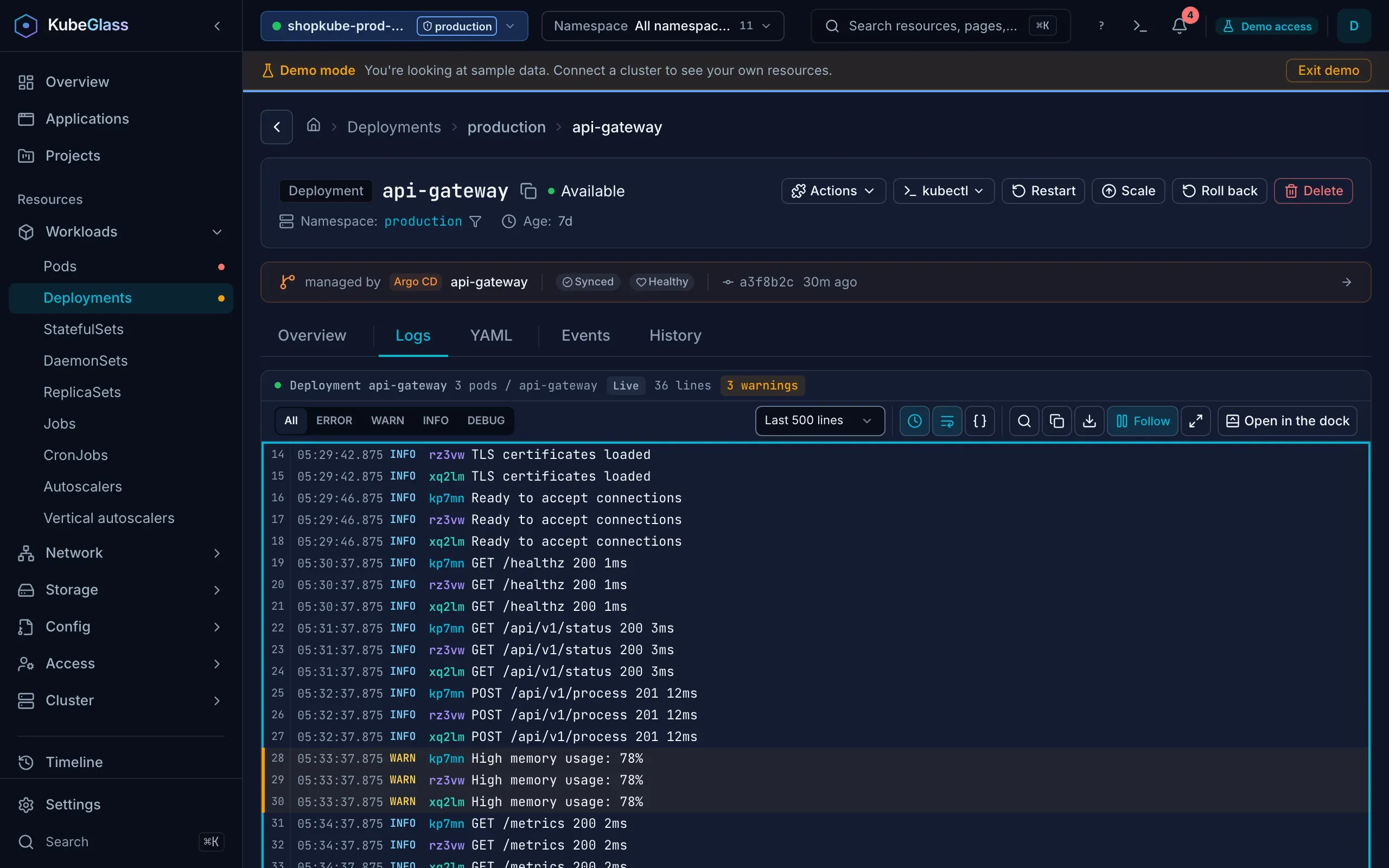
The log viewer streams logs into the browser as containers write them: one pod’s, or the logs of every pod a workload runs, merged in time order, as kubectl logs -f and kubectl logs -l app=web --prefix do. It follows the newest line until you scroll up. KubeGlass reads the logs as you, so you see the logs your RBAC lets you read.
Where logs open
Section titled “Where logs open”- The Logs tab of a pod, and of a Deployment, StatefulSet, DaemonSet, ReplicaSet or Job, which merges the logs of its pods. A CronJob has no Logs tab; open one of its Jobs from the Jobs card on its Overview tab.
- In a list,
lopens the row’s logs andpopens a pod’s logs from the run before its last restart. Hovering a row shows Logs as well. With the pane beside a list on, both open in the pane. On an object’s own page,lopens its Logs tab. - An application’s page shows the logs of one of its workloads: the one with a problem, else the one named like the application. Show the logs of picks another, and Open full view opens that workload’s Logs tab.
- On the Timeline, a row about a pod or workload has a Logs button, its panel has a link such as “Logs at 07:04:26.715”, and
lon the row does the same. They open the logs around the time of the event or change, on the container it names; for a container that stopped, on the run that stopped. Rows about deleted objects and folded runs of changes have no link. - A problem on the Overview has a Logs button when the logs help with it, such as a crash loop or a failed Job. On a pod’s page, the problem banner’s Logs button opens the container the problem is about, and for a crash loop or an out-of-memory kill, the run that failed.
A workload’s logs
Section titled “A workload’s logs”A workload’s Logs tab shows the pods that have started a container, merged by time. It reads the 20 newest, the most one stream takes, and says “Showing the 20 newest of 35 pods.” when there are more. It opens on the container kubectl logs would pick: the one the kubectl.kubernetes.io/default-container annotation names, else the first. Select container picks another, or All containers. Without such a pod it says whether the workload runs no pods, whether a Job’s pods are gone with their logs (as when they were removed by hand or with their node), or that its pods haven’t started a container yet; a failed Job’s banner then leaves out its Logs button.
When the logs come from several pods or containers, each line is tagged with its pod and container in its own color. The pod tag is the end of the pod’s name, such as xq2lm, when that tells the pods apart, and the whole name otherwise.
A pod’s containers
Section titled “A pod’s containers”A pod with more than one container opens on All containers, merged by time. The container picker lists the containers, then the init containers as init: <name>.
On a wide screen, the Layout switch has Merged (interleaved), Side by side and Stacked. The last two give each container a viewer of its own, the first two containers to start with; Add container opens another, and each viewer has a button to close it.
How much of the log
Section titled “How much of the log”Time range picks how much to read:
- Last 100 lines, Last 500 lines (the default), Last 1,000 lines, Last 5,000 lines or All lines.
- Last 1m, Last 5m, Last 15m, Last 30m, Last 1h, Last 6h or Last 24h.
The server sends at most the last 50,000 lines of each container, for All lines and the time ranges too. As new lines arrive the viewer keeps the newest: twice the line count you picked, at least 3,000, or 50,000 for All lines and the time ranges, and at most 32 million characters of them.
A line longer than 256 KiB shows its first 256 KiB, followed by “… (line cut at 256 KiB of 391 KiB)”; copied and downloaded lines say the same. The lines after it keep coming. The lines written before a stream opened stop after 50 MiB of them, so a request for a whole log of long lines can’t swamp the browser; the lines written while it follows have no such limit.
On a pod’s or a workload’s Logs tab, the address keeps what you pick: the container, the run, the time range, the filter and the level. A reload opens the same view, and so does the address copied from the browser. Each line’s number is a link to the line: a click copies it, ⌘-click or middle-click opens it in a new tab, and it opens the view around the line’s time, scrolled to the line. (The logs in the dock, and the panes of a split view, keep their own state.) Links can ask for:
| Query | Opens |
|---|---|
?tab=logs&at=<time> |
The logs from five minutes before the time, scrolled to the first line written then or after, which is marked. Following is off, and Time range reads “Around 07:04:26.715” |
?tab=logs&since=<time> |
The lines written since the time; Time range reads “Since 07:04:26.715” |
&lines=<n> |
The last 100, 1000 or 5000 lines, or with 0 all of them |
&last=<range> |
The lines of the last 1m, 5m, 15m, 30m, 1h, 6h or 24h, counted from when the link opens |
&container=<name> |
That container, or * for all of a pod’s |
&previous=1 |
The run before the last restart; previous=0 the current run |
&filter=<text> |
Lines that match the text or regular expression; with &only=0, every line with the matches marked |
&level=error |
Lines of one level: error, warn, info or debug |
The time is RFC 3339, for example /resources/pods/shop/web-7d9f-xq2lm?tab=logs&at=2026-10-06T07:04:26Z. When no line was written after it, the viewer says “No line after 07:04:26.715, so the newest are shown.” When the last 50,000 lines start after the time, it says so and when they start.
Following
Section titled “Following”Follow (s) is on when the logs open, except for an at link. The dot and Live in the header say the stream is open. Scroll up and following stops, and a button in the corner reads Newest line, or how many lines arrived since (“12 new lines”). The button, G or Follow go back to the end and follow again.
The header also counts the lines shown, the errors and the warnings. Click the errors or warnings count to show only those lines, and again to show all.
Filtering
Section titled “Filtering”Filter (/, or ⌘F on a page with logs) opens a field: “Filter lines (regex or text)”. Case doesn’t matter. A query that isn’t a valid regular expression matches as plain text, and the field says “Not a valid regex, so it matches as text”.
- Only matching lines is on to start with. Turn it off to see every line, with the matches marked.
- The count says which match you’re on, such as
3/12.EnterandShift Enterin the field,nandShift Nin the lines, or the arrows go to the next and previous match. Escin the field goes back to the lines and keeps the filter;Escagain clears it.
The level filter shows All levels, or only ERROR, WARN, INFO or DEBUG lines. A line’s level is the one it declares: a level, severity or lvl field in JSON (Bunyan and pino numbers too), level= in logfmt, klog’s letter (E1005 …), or a level word at the start. Otherwise words such as error or warning in the message decide, and a line that says nothing counts as INFO without a label.
A line a program wrote with ANSI color codes, as programs do when the container runs with a TTY or with FORCE_COLOR set, shows in its colors, bold and underlines, in theme colors that stay readable in light and dark. A filter’s match in such a line is in the match’s own color. The codes themselves are left out of what you see, filter, copy and download, and its level is read from its words.
Display
Section titled “Display”- Time (
t, on to start with): when each line was written, from the Kubernetes timestamp, to the millisecond on the 12- or 24-hour clock from Settings, with the date in front for another day. Hover for the exact time in UTC. A time the program wrote at the start of its line is left out of the message, since it has a column. - Wrap (
w, on to start with) wraps long lines. - JSON (
j) opens lines that are JSON objects into indented fields in color. - Full screen (
f) fills the browser window; Exit full screen orEscleaves it. - On a wide viewer each line has its number. Double-click a line to copy it.
- Settings › Colors has DEBUG log styling and Richer log colors for the viewer; see Colors.
On a narrow viewer the toolbar keeps the level, Follow and full screen, and Options holds the rest.
Copy and download
Section titled “Copy and download”Copy (c) puts the lines shown, after the level and text filters, on the clipboard, and Download (⌘S) saves them as a text file named after the pod or workload and the container, ending in -previous-logs.txt for the run before. With Time on, each line starts with its exact time in UTC, as kubectl logs --timestamps prints it, and with several pods or containers, the [pod/container] tag.
Which run
Section titled “Which run”Kubernetes keeps the logs of a container’s run before its last restart, which kubectl logs --previous shows. When there is one, the toolbar has Current run and Run before (p), and the header says Run before while you read it.
A note above the lines says when a run stopped and why (killed for using too much memory, it finished, or its exit code) in these cases:
- A container waiting to restart, as in a crash loop, shows the run that stopped: “Waiting to restart. These are the logs of the run that stopped 2m ago (exit code 1).”
- A container that stopped and doesn’t restart shows its logs: “The container stopped 5m ago (it finished). These are its logs.”
- When you read one container that restarted in the last 15 minutes, the viewer opens on the run before: “Restarted 4m ago. The run before stopped (killed for using too much memory).” Current run goes to the new run.
- Reading the run before of a container that runs again: “Showing the run that stopped 4m ago (exit code 1). The container is running again.”
When a stream fails
Section titled “When a stream fails”A stream’s problem shows above the lines, or in place of them when there are none:
| Message | Why |
|---|---|
Pod <pod> no longer exists. |
The pod was deleted. The lines read so far stay |
You aren’t allowed to read the logs of <pod>. |
Your RBAC doesn’t allow get on pods/log there |
<container> in <pod> hasn’t started yet (ContainerCreating). Its lines appear when it starts. |
The container is still being created or the pod is initializing |
<container> in <pod> has no run before this one. |
You asked for the run before, and the container hasn’t restarted |
Pod <pod> has no container <container>. |
The pod has no container of that name |
Stopped reading <pod> after 50 MiB. Pick fewer lines or a later start time to see the rest. |
The container has stopped, and the lines asked for come to more than 50 MiB |
Showing the first 50 MiB of <pod>’s earlier lines, then its new ones. Pick fewer lines to see the lines in between. |
The lines written before the stream opened come to more than 50 MiB. The rest of them are left out, and new lines keep coming |
The cluster stopped answering for <pod>. |
The server’s stream from the API server broke, and ten tries to open it again failed |
| The log stream failed. | Anything else, with the cluster’s message when it gave one |
Live streams and the HTTP fallback
Section titled “Live streams and the HTTP fallback”Each container’s logs are a WebSocket stream; a workload’s pods share one per container. When a connection drops, the viewer says “Connection lost. Reconnecting in 4 s.” and tries again, waiting twice as long each time up to 30 seconds, ten times. Reconnect tries at once. A reconnect asks for the lines since the last one shown, so none show twice.
When WebSockets can’t connect at all, for example behind a proxy that drops upgrades, the viewer reads the logs over HTTP instead and says “Live updates need a WebSocket, which can’t connect here, so the logs are fetched every 5 seconds.” Each fetch returns at most 10 MB of a container’s log. In demo mode the logs are sample lines.
Who can read logs
Section titled “Who can read logs”KubeGlass asks the API server for logs as you, or as the identity you picked with Act as…, over the stream and over HTTP, so get on pods/log in the pod’s namespace decides what you can read. A refused stream says “You aren’t allowed to read the logs of <pod>.”
The keys work while the focus is in the viewer and not in a field. A viewer opened with l from a list takes them at once. On an object’s Logs tab the letter keys and / also reach the viewer while the focus is on the page’s tabs or nowhere, such as after a click on the tab, so s follows or pauses there instead of opening a shell; the digits still pick tabs, n and N reach the viewer only while it has a filter, and the dock’s tabs keep their own keys.
| Keys | Does |
|---|---|
/ |
Filter the lines |
n / Shift N |
Next / previous match (Enter / Shift Enter in the filter) |
s |
Follow the newest line, or stop |
G |
Go to the newest line and follow |
g |
Go to the first line |
w |
Wrap long lines |
t |
Show or hide times |
j |
Expand JSON lines |
f |
Full screen |
1–5 |
Last 1m, 5m, 15m, 30m or 1h |
0 |
Back to the line count you last picked (Last 500 lines to start with) |
p |
Current run or the run before, when there is one |
c |
Copy the lines shown |
⌘S |
Download the lines shown |
Esc |
Clear the filter, then leave full screen |
On Linux and Windows, ⌘S is Ctrl S. Every key is also in Keyboard shortcuts.