
Extensions
The extensions file adds these to the UI, with no plugins to install:
- actions on objects: a link to open, such as a Grafana dashboard for a Deployment, or a command such as
sternfor its pods; - keys for those actions, and hotkeys that run a command of the palette’s
:; - links in the sidebar, such as Argo CD or a Loki logs dashboard;
- cards on objects’ pages: a Grafana panel, or fields of the object;
- columns in a kind’s list, read from a field of each object;
- names for the command palette’s
:, so:certopens cert-manager’s Certificates.
Each entry can be limited to some clusters, namespaces, kinds or labels with when. You can write the file in Settings › Extensions, which checks it as you type, or import what you have in k9s.
Where the file is
Section titled “Where the file is”| Setting | Default |
|---|---|
extensions_file (KUBEGLASS_EXTENSIONS_FILE) |
~/.kubeglass/extensions.yaml, or /etc/kubeglass/extensions.yaml where there is no home directory |
With the Helm chart, put the file’s contents under extensions: in your values. The chart writes them to a ConfigMap, mounts it at /etc/kubeglass/extensions.yaml and points KUBEGLASS_EXTENSIONS_FILE there:
extensions: actions: - name: Grafana kinds: [Deployment, StatefulSet] url: https://grafana.example.com/d/abc?var-namespace={namespace}&var-app={name}The chart mounts the file with subPath, which Kubernetes doesn’t update in place, so the pod template carries a checksum of the file: helm upgrade with changed extensions rolls the pods. A ConfigMap is mounted read-only, so with the chart you change the file in your values, not in Settings.
An example
Section titled “An example”actions: - name: Tail with stern kinds: [Deployment, StatefulSet] command: stern -n {namespace} {name} --context {context} key: Shift-T - name: Pod logs in Loki kinds: [Pod] url: https://grafana.example.com/d/loki-logs/logs?var-namespace={namespace}&var-pod={name}
hotkeys: Shift-1: ":deploy" Shift-2: command: ":po production" description: Pods in production
links: - label: Argo CD url: https://argocd.example.com/applications icon: git - label: Loki logs url: https://grafana.example.com/d/loki-logs/logs?var-cluster={context}&var-namespace={namespace} icon: logs
panels: - name: CPU and memory kinds: [Deployment] iframe: https://grafana.example.com/d-solo/workload/workload?orgId=1&var-namespace={namespace}&var-workload={name}&panelId=2 height: 280 - name: Ownership kinds: [Deployment, StatefulSet] fields: - name: Team path: .metadata.labels.team - name: Image path: .spec.template.spec.containers[0].image
allowedOrigins: - https://grafana.example.com
columns: - kind: Certificate.cert-manager.io name: Issuer path: .spec.issuerRef.name
aliases: cert: certificates.cert-manager.ioActions
Section titled “Actions”Each action has a name, the kinds it applies to, and either a url or a command, not both. key and when are optional.
- A
urlmust start withhttps://orhttp://. KubeGlass opens it in a new tab. - A
commandruns in a terminal tab when KubeGlass was started with--local-shell, after a dialog that shows it. Otherwise KubeGlass copies it. See Commands.
An object’s page shows its actions next to its other buttons: one action as a button, several in an Extensions menu. A row’s menu in the list has them too, after the kind’s own actions.
Placeholders are filled in from the object:
| Placeholder | Value |
|---|---|
{name}, {namespace}, {kind}, {uid} |
The object’s name, namespace, kind and UID |
{context} |
The kubeconfig context you’re viewing; in a list of several clusters, the row’s |
{labels.KEY}, {annotations.KEY} |
The value of one label or annotation, such as {labels.app} |
{resource}, {group}, {version} |
The kind’s plural, API group and version, such as deployments, apps and v1 |
{container} |
A container of a pod, or of a workload’s pod template. With several, the dialog asks which |
In a URL each value is URL-encoded. In a command each value is quoted for where it is: as a word of its own, or inside the single or double quotes around it. A placeholder KubeGlass doesn’t know, or a label the object doesn’t have, stays in the text as it is.
Commands
Section titled “Commands”Without --local-shell, choosing a command action opens a dialog with the filled-in command and a Copy button. Nothing runs.
With --local-shell (see Terminal), the same dialog has a Run in terminal button. It opens a local shell in a new terminal tab named after the action and types the command there once the shell is ready, so it runs as you, on the computer KubeGlass runs on. kubectl in that shell starts on the cluster you have open. The dialog also:
- asks which container, when the command uses
{container}and the object has more than one; - says when a value had characters a shell reads specially, such as
$(or a quote, and was quoted. A script inside the command, as insh -c '…', reads the value again, so check those; - won’t run or copy a command with a value that no quoting makes safe: one with a control character (a terminal acts on
Ctrl U,Ctrl Cor a line break as it is typed, quoted or not; the dialog shows them as symbols such as ␕), or one that needs quoting after$(,${or a backtick inside double quotes. Put such a placeholder outside the double quotes; - won’t run or copy a command where a value that starts with
-begins a word, quoted or not, since the program would read it as an option: an annotation set to--server=http://…or--allcould pointkubectlat another server or widen what it acts on. Put--before such a placeholder (kubectl describe pod -- {annotations.target}). A value inside a word, as in-l app={labels.app}, is fine; - names the cluster when you marked it production;
- offers only Copy on a cluster you marked read-only, because KubeGlass opens no shell for it.
key on an action runs it with a key: on an object’s page, and in a list on the row you moved to with the arrow keys. A hotkey works on every page. Neither works while you type in a field. Write a key as modifiers and a key joined by -:
- modifiers:
Ctrl,Alt(orOption),ShiftandMeta(orCmd); - keys: a letter, a digit,
F1toF12, one of/ . , ; ' [ ] \ = `,Enter,Space,Backspace,Delete,Escape,Insert,Home,End,PageUp,PageDownand the arrow keys (ArrowUpand so on).
Shift-1 is the 1 key with Shift held, whatever character it types on your keyboard. Tab can’t be a key, because it moves between controls.
KubeGlass’s own keys come first: an extension’s key that KubeGlass already uses on that page does nothing there. Settings › Extensions lists every key that meets one of KubeGlass’s, one the browser keeps (such as Meta-W), or another entry’s key on the same kind. Keyboard shortcuts lists KubeGlass’s keys.
Hotkeys
Section titled “Hotkeys”hotkeys maps a key to a command of the palette’s :. The value is the command, or an object with command, an optional description and when:
hotkeys: Shift-1: ":deploy" Shift-2: command: ":po kube-system" description: Pods in kube-systemA hotkey takes the same commands as the palette’s :. One that names a kind, with an optional namespace or all, opens that kind’s list, and one that names a page, such as :helm or :events, opens it. :ns shop switches to that namespace, as in the palette. A command the palette runs itself, such as :ctx prod or :xray, opens the palette with it typed in, and so does one the palette doesn’t have; What the file adds in Settings says which. The leading : is optional.
links adds a Links section to the end of the sidebar. Each link has a label, a url and optionally an icon and when. Links open in a new tab.
In the URL, {context} is the cluster you have open and {namespace} the namespace you picked, or the object’s on an object’s page; it is empty for all namespaces. The icon is one of link (the default), dashboard, chart, logs, git, book, bug, bell, cloud, database, shield, terminal, globe, rocket, gauge and box.
Panels
Section titled “Panels”panels adds cards to the Overview of objects’ pages. Each panel has a name, the kinds it applies to, and either iframe or fields.
fields lists rows of a name and a path into the object, read the same way as columns.
iframe shows a page of another site in the card, height pixels high (100 to 2000, 300 if you leave it out). The address takes the same placeholders as an action’s url, but not in its host: https://grafana.example.com/d-solo/...?var-app={name} works, https://{namespace}.grafana.example.com/ doesn’t. The site’s origin (scheme, host and port) must be listed in allowedOrigins.
KubeGlass keeps the framed page away from its own:
- The server’s
Content-Security-Policyhasframe-srcwith exactly the origins inallowedOrigins, andframe-src 'none'when there are none, so the browser frames no other site. - The frame is sandboxed with
allow-scripts allow-same-origin allow-popups allow-popups-to-escape-sandbox. The page runs as its own origin and can’t reach or navigate KubeGlass’s page, and forms in it don’t submit. - The framed site gets no
Refererfrom KubeGlass. - KubeGlass refuses a panel on its own origin, since such a page could reach into KubeGlass’s.
The policy comes with the page, so after you add an origin, reload KubeGlass. Until then the card says the policy blocked the frame and has a Reload button.
For a Grafana panel, use the embed address from the panel’s Share menu (/d-solo/...&panelId=N). Grafana refuses to be framed unless allow_embedding = true is set in the [security] section of its configuration. The frame uses your Grafana session in that browser; if the card shows Grafana’s sign-in page, see Grafana’s documentation for cookie_samesite.
when limits an action, column, hotkey, link or panel. Every key you give must match:
| Key | Matches |
|---|---|
contexts |
The kubeconfig context, with * and ? as wildcards: prod-* |
namespaces |
The object’s namespace, or for links and hotkeys the page’s, with the same wildcards. A cluster-scoped object doesn’t match, and neither does a link or hotkey while all namespaces are picked |
kinds |
The kind, written as in kinds |
labels |
A label selector, as in kubectl get -l: app=web,tier!=db, env in (prod, staging), !canary |
Each of contexts, namespaces and kinds takes one value or a list. Links and hotkeys aren’t on one object, so they can’t have labels; their namespace and kind are the page’s. In a list, a column shows when its contexts and kinds match, and its value shows on the rows whose namespace and labels match.
actions: - name: Production runbook kinds: [Deployment] url: https://wiki.example.com/runbooks/{name} when: contexts: ["prod-*"] labels: tier=frontendColumns
Section titled “Columns”Each column has a kind, a name for its header, and a path to a field of the object. The path starts with a dot:
| Path | Reads |
|---|---|
.spec.issuerRef.name |
A field |
.spec.containers[0].image |
An item of a list by position |
.status.conditions[type=Ready].status |
The item of a list whose field has that value |
.metadata.labels["app.kubernetes.io/name"] |
A key with dots in it |
Text, numbers and true or false show as they are, a list shows its items separated by commas, and anything else as JSON. The column sorts like the others, and it is hidden when no object in the list has a value there.
Aliases
Section titled “Aliases”aliases maps a name to a kind, written any way the cluster knows it: its plural, plural.group, its kind or a short name. The name can’t contain spaces or colons. Type : and the alias in the command palette to open that kind’s list; a namespace after it works too, as with any kind (:cert kube-system).
In kinds and in a column’s kind, name a kind the way kubectl does: Deployment, deployments, or for a custom resource certificates.cert-manager.io or Certificate.cert-manager.io. Case doesn’t matter. In kinds, "*" means every kind.
Settings › Extensions
Section titled “Settings › Extensions”Settings › Extensions shows the file in an editor. As you type, KubeGlass checks the text as it would read the file and marks each mistake on its line; click a mistake in the list under the editor to go to its line. Below that, What the file adds says what each entry does and where, and which keys won’t always work.
Save (or Ctrl-S, ⌘S on a Mac) writes the file once it has no mistakes. KubeGlass keeps the file it replaces beside it, named with the time (extensions.yaml.20261006T110253Z.bak), and keeps the last five of those. If the file changed on disk while you edited, KubeGlass says so and lets you load the file or save yours over it.
Who can save:
- Running on your own computer, you can.
- In a cluster, only KubeGlass admins can, and only when KubeGlass can write the file. The Helm chart mounts it read-only from a ConfigMap, so there you change
extensionsin your values. - A read-only KubeGlass (
--read-only) saves nothing.
Saved changes apply at once, with no restart.
Import from k9s
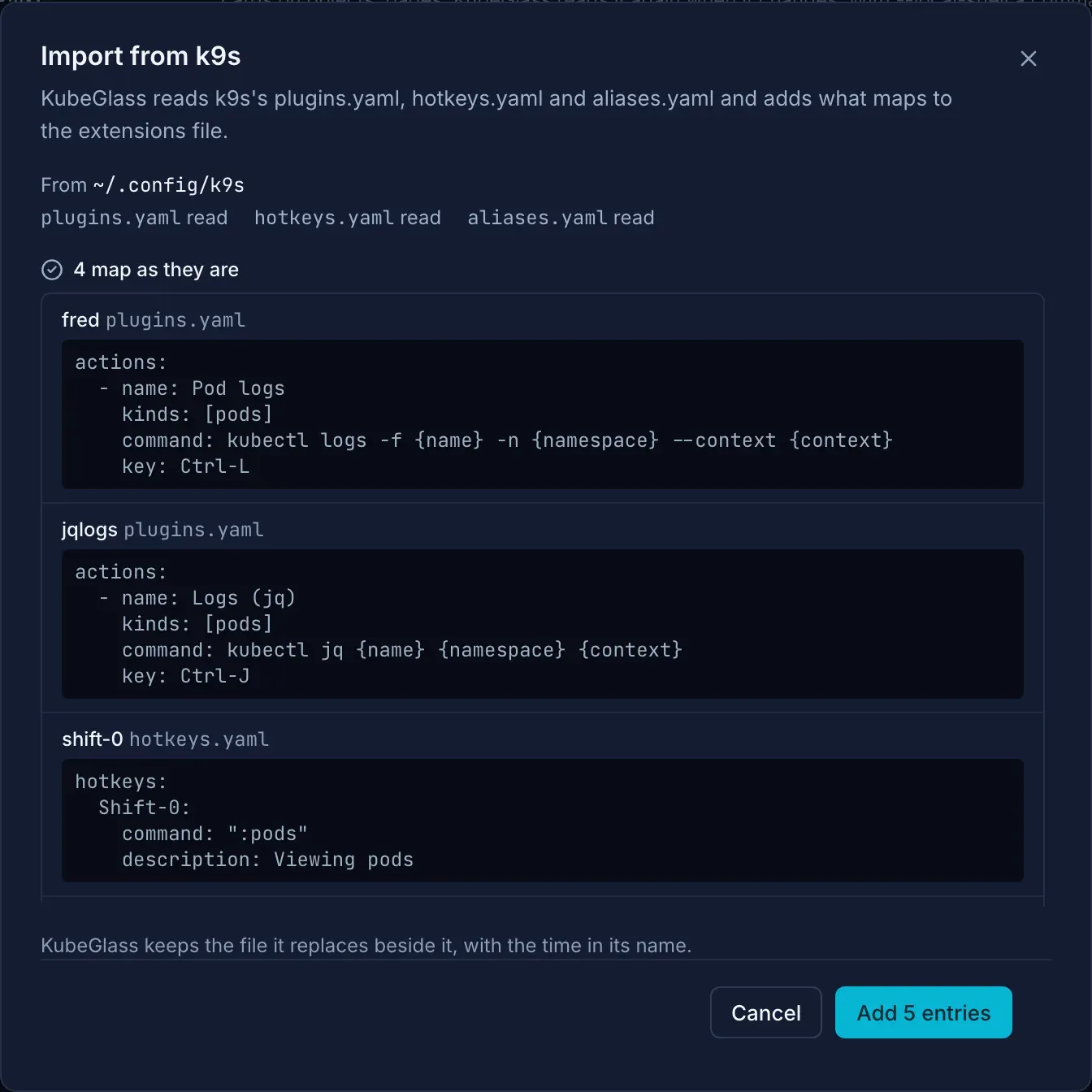
Section titled “Import from k9s”Running on your own computer, Settings › Extensions has Import from k9s. KubeGlass reads plugins.yaml, hotkeys.yaml and aliases.yaml from the first of these folders that has any of them, in the order k9s uses:
$K9S_CONFIG_DIR$XDG_CONFIG_HOME/k9s~/.config/k9s~/Library/Application Support/k9s(macOS)
It lists each plugin, hotkey and alias with what it becomes: one that maps as it is, one that maps with a difference (and what the difference is), one the file has already, and one that doesn’t map, with the reason. Add writes the entries that map to the end of the extensions file, keeping your comments, with a backup of the old file as Save does. KubeGlass never changes k9s’s files.
A plugin becomes a command action. Its description is the name, its scopes the kinds, its shortCut the key, and command with args the command. k9s’s variables become placeholders:
| k9s | KubeGlass |
|---|---|
$NAMESPACE, $NAME, $CONTEXT, $CONTAINER |
{namespace}, {name}, {context}, {container} |
$RESOURCE_NAME, $RESOURCE_GROUP, $RESOURCE_VERSION |
{resource}, {group}, {version} |
$COL-NAME, $COL-NAMESPACE |
{name}, {namespace} |
$KUBECONFIG |
Left for the shell, which has it set |
A plugin for k9s’s containers view runs on pods: $NAME becomes the container you pick and $POD the pod. These don’t map: a plugin that uses $CLUSTER, $USER, $GROUPS, $FILTER, other $COL- columns or ${VAR:+...}, one that asks for inputs, one that pipes its output, and one only for views that aren’t kinds, such as helm. When a key is taken on the same kind, the action comes without it.
A hotkey keeps its key, command and description. A word the palette knows stays as it is (pulses, deployment, ctx prod); k9s’s own names for kinds become the kind’s (dp becomes deployments) and its views the palette’s (hm becomes helm; xray deploy becomes xray, since KubeGlass’s :xray takes nothing after it). k9s’s charts is its Helm releases, so it becomes helm: the palette’s :charts is the chart catalog. A hotkey whose command uses variables, or opens a k9s view the palette doesn’t have, such as users, doesn’t map. An alias maps when it names a kind; one that also sets a namespace or labels doesn’t.
Mistakes and changes
Section titled “Mistakes and changes”KubeGlass reads the file strictly: an unknown key or broken YAML makes it ignore the whole file. An entry with a mistake, such as an action with neither url nor command, a key it can’t read or a panel whose origin isn’t in allowedOrigins, is left out and the rest still work. Settings › Extensions lists each mistake with its line.
KubeGlass looks at the file again when it changes, so there is nothing to restart. The UI asks for it every minute, and at once after a save from Settings. Files over 1 MiB aren’t read.
| Request | Does |
|---|---|
GET /api/v1/extensions |
The file as KubeGlass has it: path, found, problems (each with text and line), and its entries |
GET /api/v1/extensions/file |
The file’s text and version, and whether you can save it |
PUT /api/v1/extensions/file |
Saves content over the version baseHash; admins only |
POST /api/v1/extensions/validate |
Checks content without saving it |
GET /api/v1/extensions/k9s |
What importing from k9s would add; on your own computer only |