
Map
Applications › Map draws how the namespace picked in the top bar fits together, or the whole cluster when you look at all namespaces: which Ingresses and routes send traffic to which Services, the workloads and pods behind them, and the ConfigMaps, Secrets and claims they use. Whatever is broken is red or amber, and so is every line that leads to it, so you can follow a failing Ingress back to the pod that crash-loops. The map refreshes every 15 seconds.
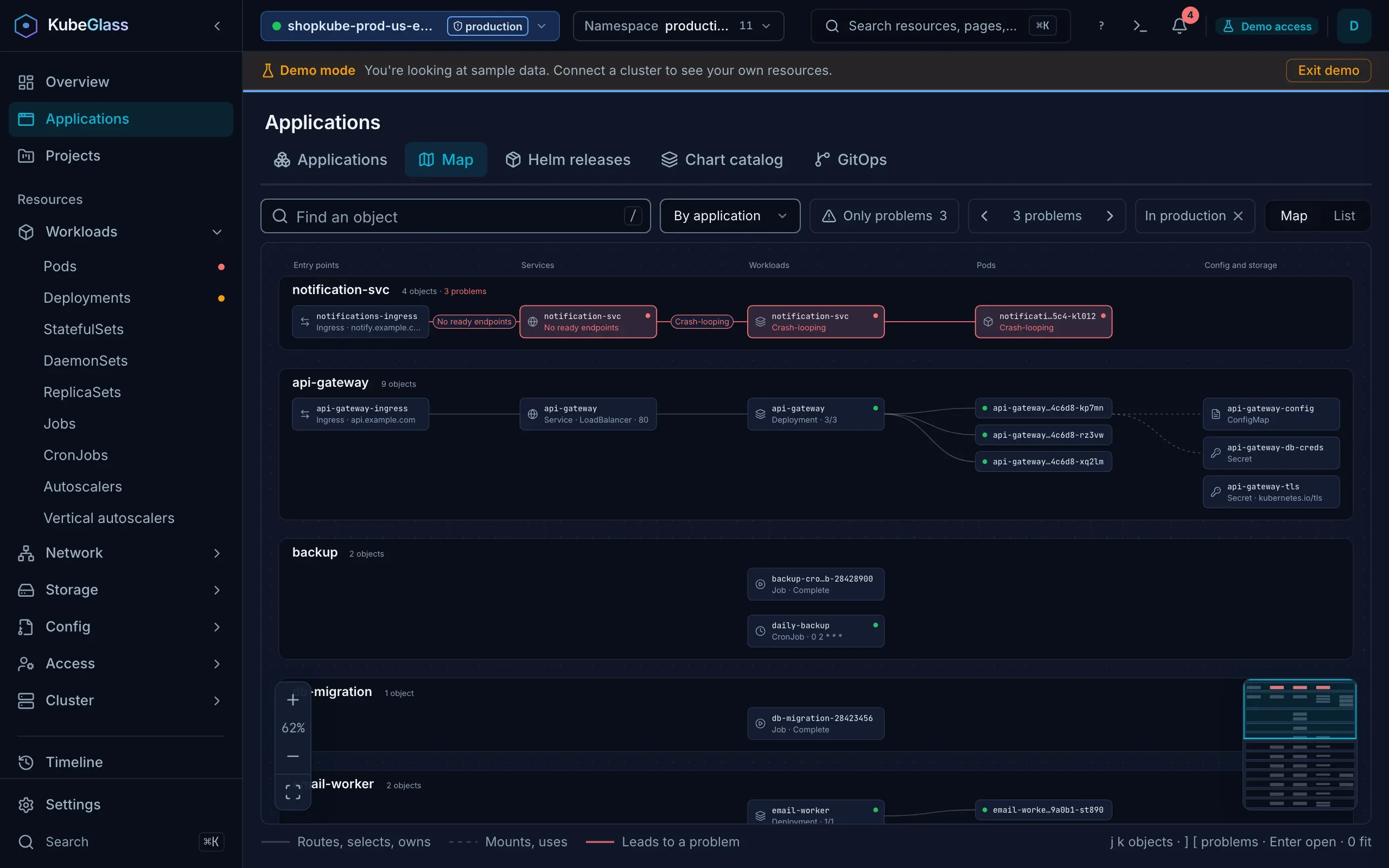
With a namespace picked, In <namespace> next to the controls says which one, and its × switches to all namespaces.
What is on the map
Section titled “What is on the map”Objects sit in columns, left to right the way traffic goes:
| Column | Objects |
|---|---|
| Entry points | Ingresses, and Gateways when the cluster has the Gateway API |
| Routes | HTTPRoutes and GRPCRoutes |
| Services | Every Service |
| Workloads | Deployments, StatefulSets, DaemonSets, CronJobs, Jobs that no CronJob made, and ReplicaSets that no Deployment owns |
| Jobs | A CronJob’s Jobs |
| Pods | Every pod except those that completed |
| Config and storage | The ConfigMaps, Secrets and service accounts something on the map refers to, and every PersistentVolumeClaim, mounted or not |
A Deployment’s ReplicaSets aren’t drawn: its pods hang off the Deployment. A ReplicaSet of its own is left out once it is scaled to zero with no pods. So are the default service account and the kube-root-ca.crt ConfigMap that Kubernetes puts in every pod.
Solid lines are traffic and ownership (Routes, selects, owns in the legend): an Ingress or route to its Services, a Gateway to its routes, a Service to the workloads or bare pods its selector matches, and a workload to its Jobs and pods. Dashed lines are configuration (Mounts, uses): the volumes a workload mounts, the ConfigMaps and Secrets it reads as environment variables, its image pull secrets and service account, and an Ingress’s or Gateway’s TLS Secret. Pointing at an object draws its lines thicker, in the accent color.
Under its name, each object says what is wrong with it, or else its kind and the fact that matters most: a workload’s ready count, a pod’s or Job’s state, a Service’s type and ports (ClusterIP · 80, 443), an Ingress’s hosts, a claim’s size and storage class, a CronJob’s schedule. A healthy pod takes one line with a status dot.
Group by puts the objects in lanes: By namespace, By application or By node. The map of one namespace starts By application, and the map of all namespaces or of a project By namespace. A lane’s heading has its name, how many objects it holds and how many have a problem, and the lanes with the most problems come first.
- By application: a lane for each application in each namespace, grouped the way Applications groups workloads. A Service goes in the lane of what it selects, an Ingress or route in its Service’s, and config in the lane of what uses it. The rest is under Not part of an application.
- By node: each pod in the lane of the node it runs on. Its workload, Services and config join it only when everything they connect to is on that node; the rest is under On several nodes or none.
Inside a lane, each workload starts a row with the Services that select it and the Ingresses in front of those on its left, and its pods and config on its right, so a chain reads along one line.
Problems
Section titled “Problems”Objects carry the problems the Overview finds, so a Deployment shows its pods’ crash loop (“2 pods crash-looping”), and an object whose own state is an error or a warning counts too. The map adds three of its own:
| Label | Means |
|---|---|
| No ready endpoints | The Service selects pods, but none of them is ready |
| Selects no pods | The Service’s selector matches no pod and no workload’s pod template, so it can never have endpoints |
| Not found | Something on the map refers to a Service, ConfigMap, Secret, claim or service account that doesn’t exist in that namespace. It is drawn with a dashed outline |
A reference marked optional is never Not found, and neither is an object of a kind you may not list: it appears without a state.
An object with a problem has a red outline for an error or an amber one for a warning, and so does every line that leads to it. The line where the chain turns bad carries the reason. An Ingress whose Service has no ready endpoints because its Deployment crash-loops reads: the Ingress, “No ready endpoints”, the Service, “Crash-looping”, the Deployment and its pod. The line from the Deployment to the pod has no label, because the pod’s problem is the one the Deployment already shows.
Only problems keeps just the chains: the objects with a problem, everything that leads to them, and the ConfigMaps, Secrets and claims a broken object mounts or uses. Its button counts the objects with a problem. When nothing has one, the map says “Everything on the map is healthy.” and offers Show everything. ] and [, or Previous problem and Next problem next to the button, go from problem to problem and say which one of how many you’re on.
Moving around
Section titled “Moving around”- Drag, or scroll with a trackpad, to move; pinch or use the mouse wheel to zoom. On a touch screen, drag with one finger and pinch with two.
- The buttons in one corner zoom in and out, show the zoom level and fit the map to the screen. The minimap in the other shows the whole map with the part on screen outlined; press or drag in it to move there. A map narrower than 640 pixels, such as one beside the pane or on a phone, has no minimap.
- When the whole map would be too small to read, it opens at the top left, where the lanes with problems are. Zoomed far out, the words are hidden and the colors stay.
- Find an object finds anything on the map by name, kind or namespace; every word you type has to match. It lists up to eight matches and dims the rest of the map;
↑and↓pick a match andEntertakes the map to it./puts the cursor in Find an object. - Clicking an object opens it in the pane the resource lists use, or in a card with Open on a narrow screen. A Not found object opens a card that says it doesn’t exist.
The address keeps the view, Group by, Only problems and the picked object (?mode=list, ?group=node, ?problems=1, ?sel=), so a link opens the same map.
With the map focused:
| Keys | Does |
|---|---|
| Arrow keys | Move the map; with Shift, further |
+ / - |
Zoom in / out |
0 |
Fit the map to the screen |
j / k |
Next / previous object |
] / [ |
Next / previous problem |
Enter or Space |
Open the picked object |
Esc |
Close the card or the pane, then let go of the picked object |
/ |
Find an object |
j and k go lane by lane and row by row, and a screen reader hears each object’s name, kind and state and where it is in the order.
The list view
Section titled “The list view”List, next to Map, shows the same map as an indented tree that the keyboard and screen readers can walk. Each lane holds its entry points, under them the Services they route to, the workloads those select, their pods and what they mount, and each row says how it connects to the one above: routes to, selects, owns, mounts or uses. What leads to a problem comes first. An object reached a second way is listed again as “listed above” or “in another group”, without its children, and Enter on it goes to its full entry.
↑ and ↓ move, → opens a row or goes into it, ← closes it or goes back up, Home and End go to the first and last row, and Enter opens the object.
Large maps
Section titled “Large maps”When a workload has more than six pods, the map shows five of them, or more if more than five have a problem, so every pod with a problem stays in view. The rest fold into one tile that says how many more pods there are and how many of them are ready. Click it to see them all, and Show fewer pods to fold them again. Finding a folded pod with Find an object unfolds its workload’s pods.
A map holds at most 2,000 objects. A larger one keeps the problem chains first, then everything except pods, then pods, and says above the map how many objects it shows of how many there are. Pick a namespace to see all of one.
Permissions
Section titled “Permissions”The server lists everything as you, so the map has only what you may list. When you may not list a kind, it says so (“You may not list secrets, so the map leaves them out or shows them without a state.”), and a Secret a pod refers to still appears, without a state. A map with nothing on it says “There are no workloads, Services or Ingresses here that you may list.”
Where else the map appears
Section titled “Where else the map appears”- An application’s page has a Map tab with just that application: its workloads and pods, the Services that select them, the Ingresses, routes and Gateways in front of those, and the ConfigMaps, Secrets and claims they use. It has no lanes, and an application in several namespaces is drawn as one. See An application’s page.
- A project’s page has a Map tab with its namespaces, a lane each to start with. KubeGlass asks for each namespace’s map on its own, as you, so it works for someone who may read only those namespaces.
GET /api/v1/graphreturns the map as JSON; see Map in the API reference.
The map and an object’s related resources
Section titled “The map and an object’s related resources”An object’s own page shows what that one object connects to. On its Overview tab, Related resources has its owners up the chain, what it owns, the Services that select it, the node it runs on and what its spec refers to, and Used by lists what uses it. The map draws the same links for a whole namespace at once, with the problems along them.
:xray in the command palette opens the Related resources of the object whose page is open, and Applications when none is. Typing topology, graph or dependencies in the palette finds the map.